Golf Simulator Guide
Use the numbered steps and photo callouts to set up your PGM simulator session.
Back to Golf Simulators
Guest login
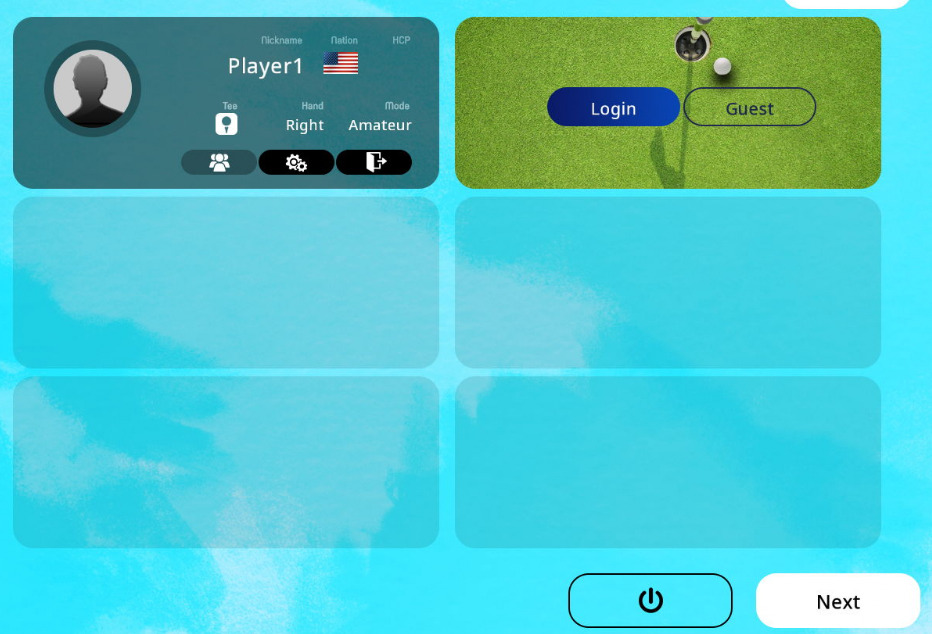
- Step 1. Open PGM and click Start.
- Step 2. Select Guest in an available player slot.
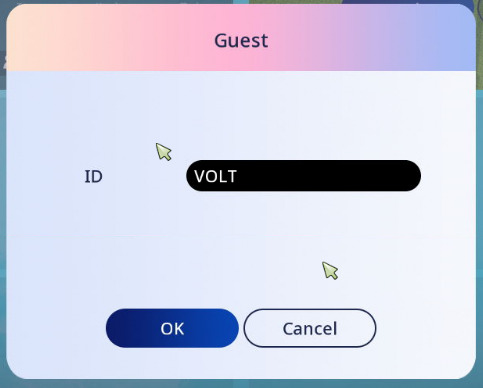
Enter a guest name
- Step 3. Enter the player's name in the ID field.
- Step 4. Press Enter or click OK to confirm.
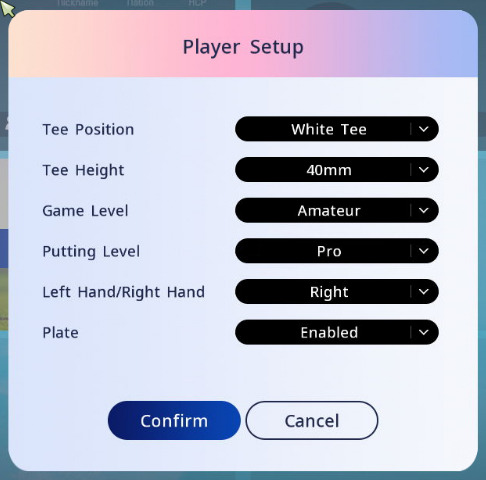
Player preferences
- Step 5. Select the gear icon on the player card.
- Step 6. Choose handedness, tee position, tee height, game level and putting level.
- Step 7. Click Confirm.
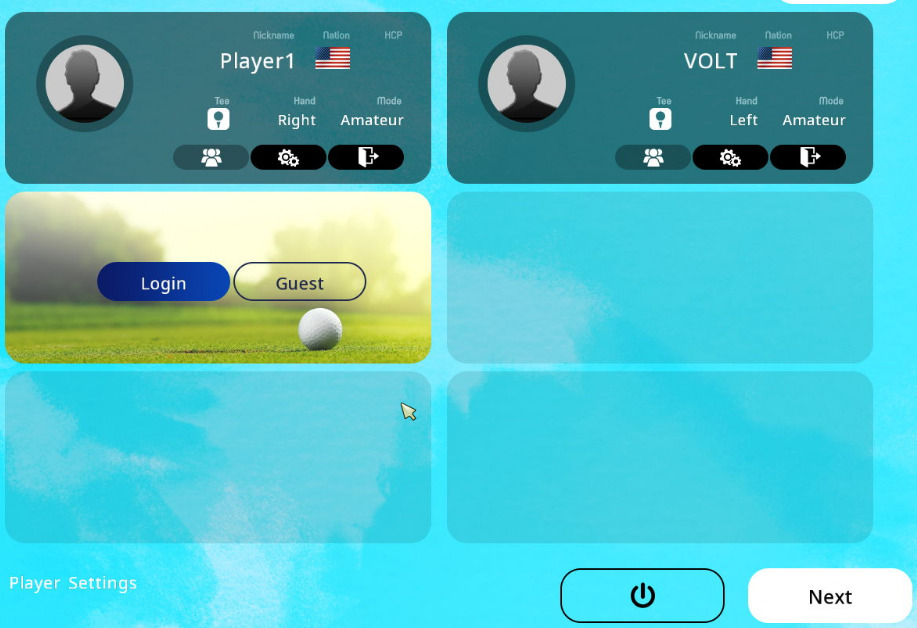
Add players
- Step 8. Select Guest in an empty slot and enter the next player's name.
- Step 9. Repeat as needed, then click Next.
Select an activity
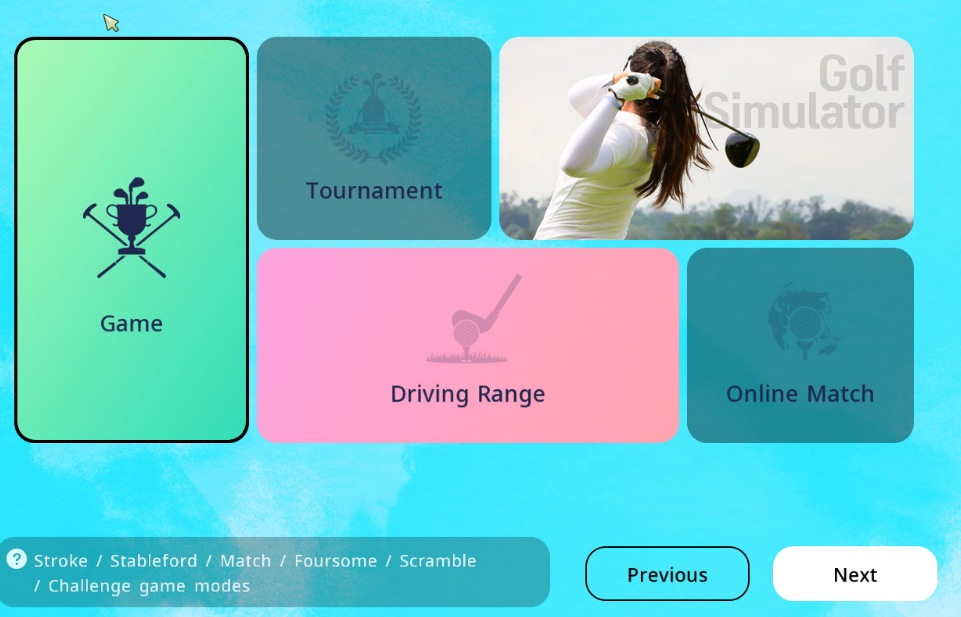
- Step 10. Select Game or Driving Range.
- Step 11. Click Next.
Choose a mode
Game
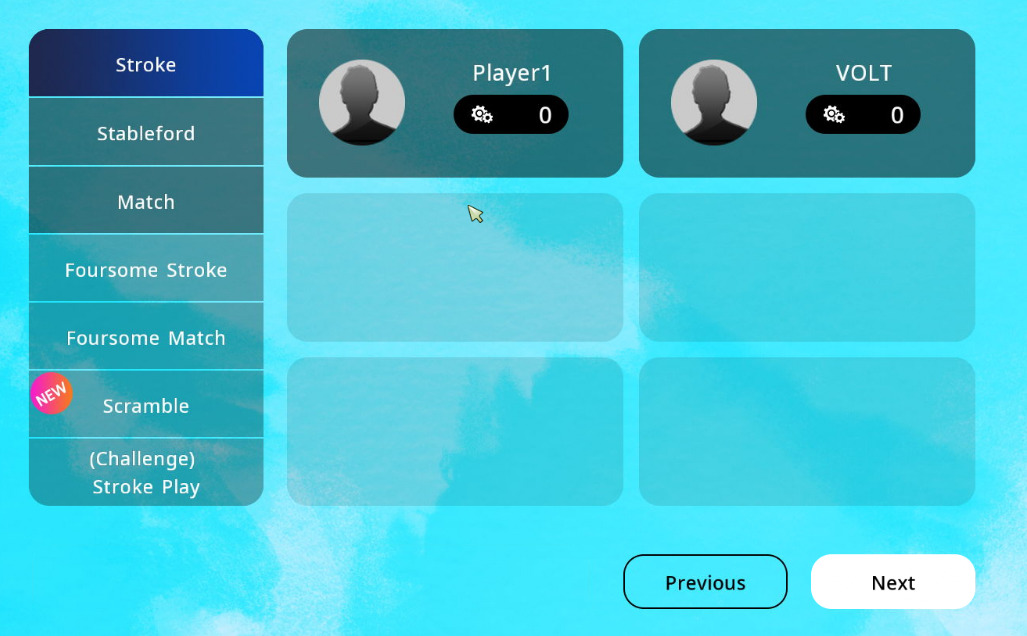
- Step 12. Choose a game type, such as Stroke, Stableford, Match, Foursome or Scramble.
- Step 13. Click Next to choose a course.
Driving Range
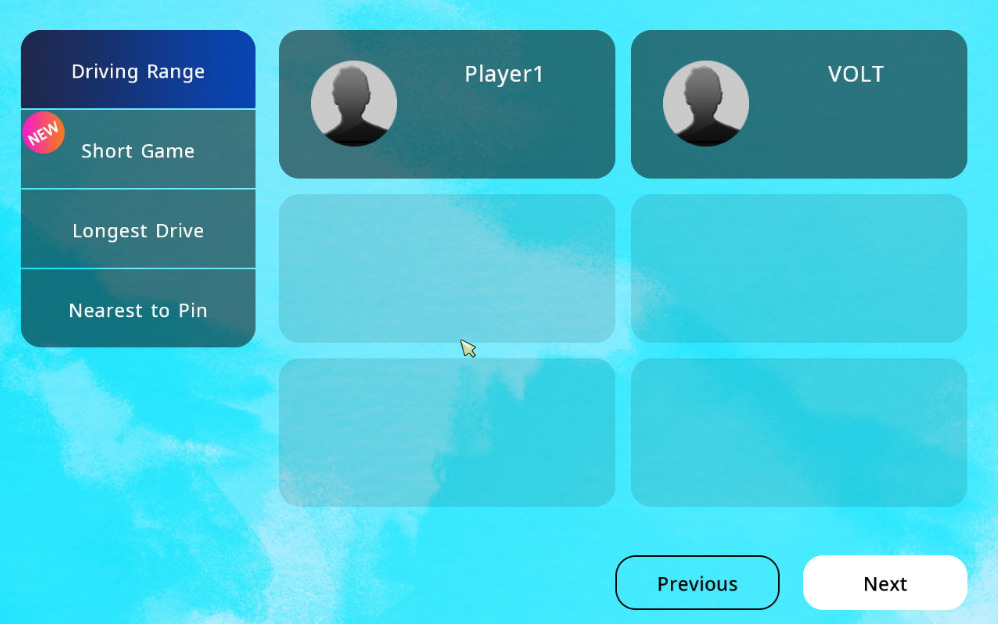
- Step 12. Choose Driving Range, Short Game, Longest Drive or Nearest to Pin.
- Step 13. Click Next.
Choose a course
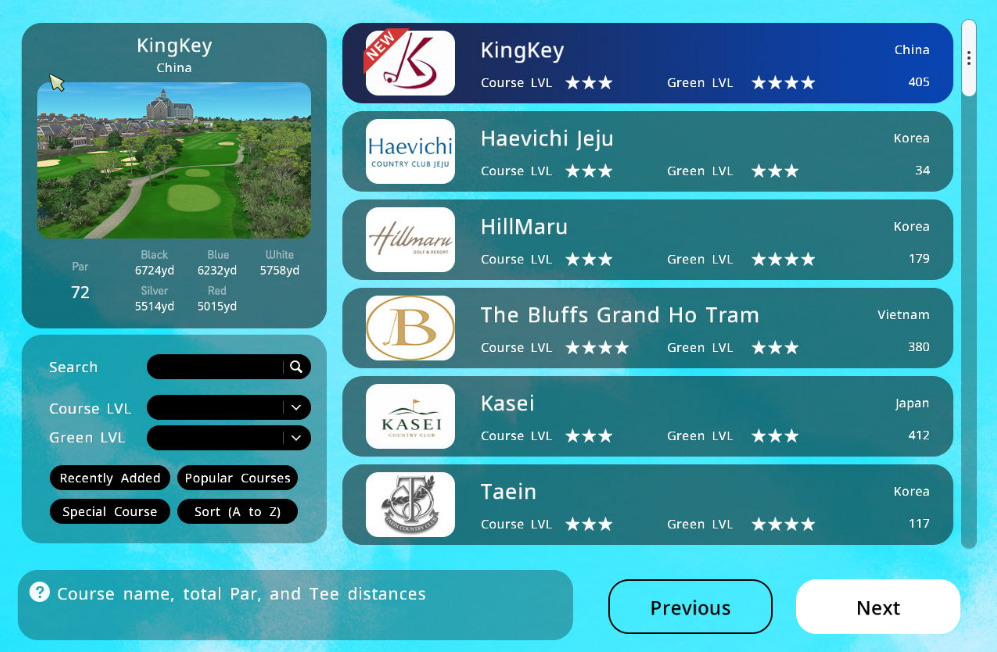
Use steps 14 to 18 when playing a round in Game mode.
- Step 14. Select a course from the list.
- Step 15. Use search or filters to narrow the list if needed.
- Step 16. Click Next.
Configure the round
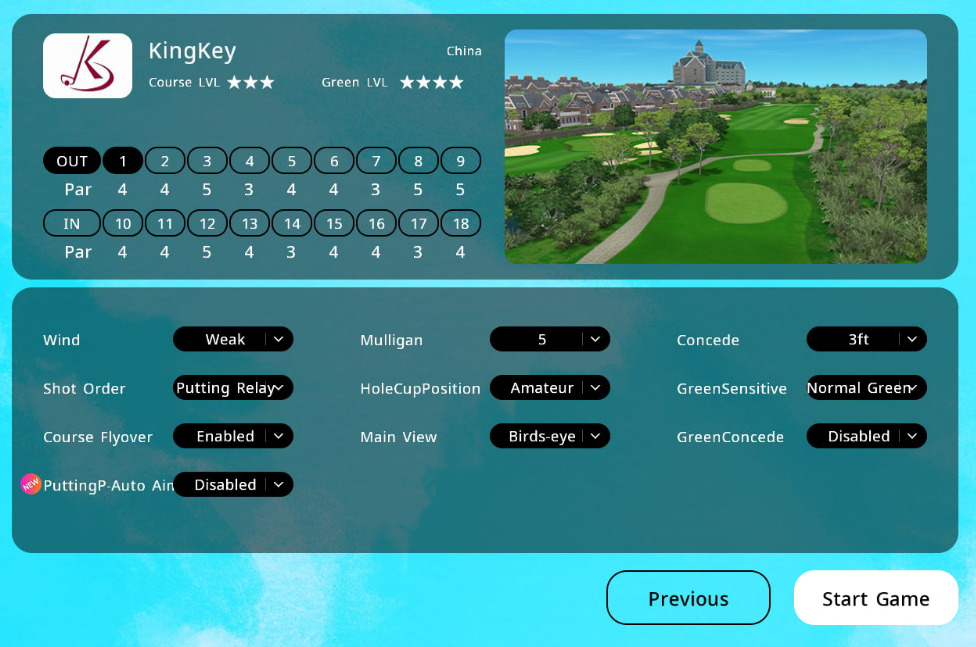
- Step 17. Choose holes and adjust round settings such as wind and mulligans.
- Step 18. Click Start Game.
TEEMASTER controls
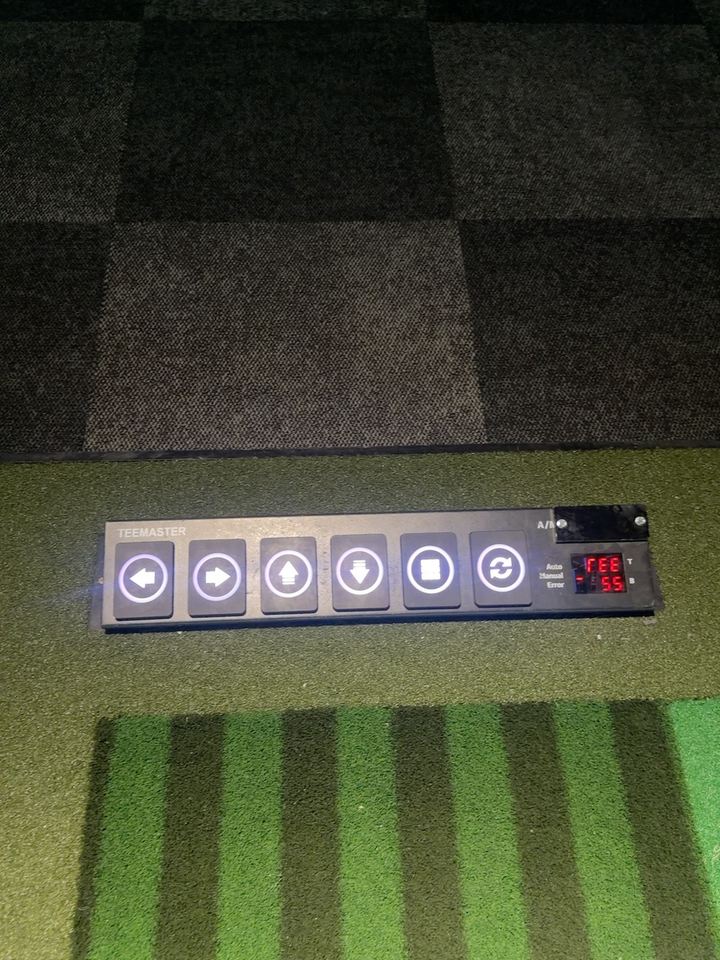
- Step 19. Use left and right arrows to adjust shot direction.
- Step 20. Use up and down arrows to set tee height.
- Step 21. Check the height display.
Wait, then hit
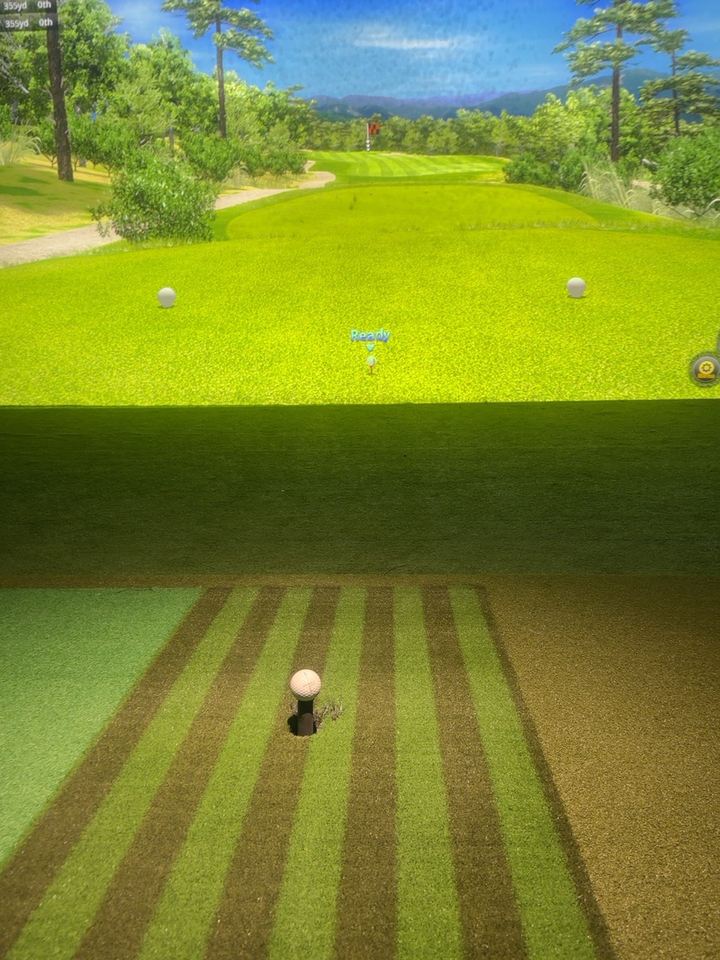
- Step 22. Wait for the blue Ready message.
- Step 23. Position the ball on the tee and take your shot.
Fairway shots
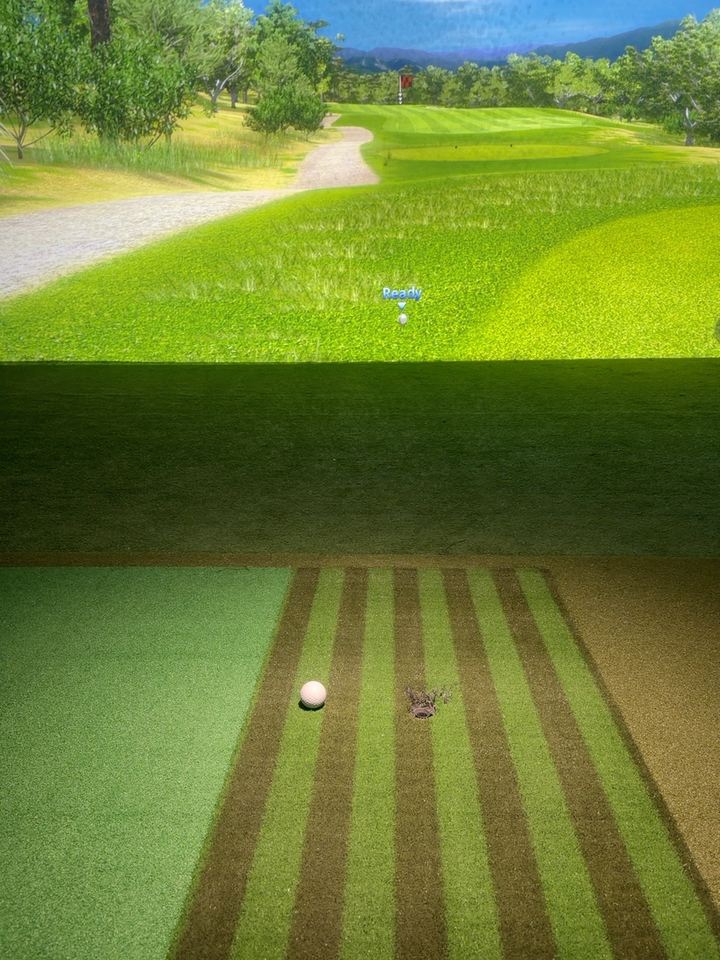
- Step 24. Place the ball directly on the mat.
- Step 25. Move it left or right of the tee opening.
- Step 26. Wait for Ready before hitting.